
SD Card Recovery: Recovering Corrupted Photos & Videos Safely
Use this page for standard SD, SDHC, SDXC, and microSD cards in cameras, phones, drones, and action cameras. This is the SD-specific workflow. If you are dealing with CompactFlash, CFast, XQD, or CFexpress media, use Memory Card Recovery Guide instead.
Start Here: Separate Card Failure from File Failure
- Use this guide when the card is unreadable, asks to be formatted, shows as RAW, or disappears intermittently in the camera or computer.
- If the failing media is CF, CFast, XQD, or CFexpress instead of SD or microSD, switch to Memory Card Recovery Guide.
- If your Canon camera shows a playback-only warning such as "Cannot playback image," compare Canon cannot playback image fix before assuming every file is permanently lost.
- If the card recovery succeeds but the photos still open with gray blocks, stripes, or broken metadata, continue to Batch Photo Repair Guide or Advanced JPG Repair.
- If the emergency is tied to one important shoot, also read Wedding Photo Recovery: What to Do First or Emergency Photo Recovery.
- If the failing device is a USB flash drive instead of an SD card, compare USB Drive File Corruption: Causes, Symptoms & Repair Methods.
Understanding SD Card Corruption
SD card corruption can manifest in various ways, making files inaccessible or the card itself unreadable. Understanding the root causes and early warning signs is the first step towards data recovery and future prevention.
Common Causes of SD Card Corruption
Several factors can lead to an SD card becoming corrupted. These can be broadly categorized into physical damage, logical errors, and user-related issues:
- Physical Damage: This is a frequent culprit. Dropping the card, exposure to extreme temperatures (heat or cold), water damage, or even bending can physically harm the delicate internal circuitry. Zach Nicholz Photography Blog highlights physical damage like drops and spills as a common form of corruption. Cracks in the casing or damage to the gold contacts can render a card unusable (Disk Drill).
- Improper Handling and Usage:
- Removing the SD card while a device is still writing or reading data is a major cause of corruption (Quora, SLR Lounge).
- Using the same SD card across multiple devices with different file systems without reformatting can lead to file system conflicts (VMI.TV).
- Power failures or low battery in the device (e.g., camera) during a write operation can interrupt the process and corrupt files (VMI.TV).
- File System Corruption: The file system on the SD card (e.g., FAT32, exFAT) can become corrupted due to abrupt removal, unexpected power outages during file transfers, or errors during formatting (Daily Iowan).
- Malware or Virus Infections: Connecting the SD card to an infected computer can lead to malware corrupting files or rendering the card unusable (Daily Iowan).
- Manufacturing Defects and Wear & Tear: SD cards have a finite lifespan. Over time, they can develop bad sectors or suffer from accumulated failures due to repeated write/erase cycles (Photography Stack Exchange).
Telltale Signs of a Corrupted SD Card
Recognizing the early signs of SD card corruption can give you a chance to back up data before it's too late. Disk Drill provides a comprehensive list of symptoms:
- Card Not Detected: The device or computer fails to recognize the SD card when inserted.
- Read/Write Errors: You encounter error messages while trying to copy files to or from the card.
- Missing Files: Photos or videos that were previously there suddenly disappear.
- "Format Disk" Error: Windows or another OS prompts you to format the card before you can use it. Do not format if you want to recover data.
- Slow Performance: The card operates unusually slowly during data transfer.
- Unknown Files: Strange, unopenable files with garbled names appear on the card.
- Incorrect Capacity: The card shows a much smaller capacity than it should.
- Device Malfunction: The camera or device shows error messages like "SD Card error" or experiences issues like a black screen when the card is inserted.
- RAW File System: The card's file system appears as "RAW" in Disk Management, making it unreadable by the OS.
If you notice any of these signs, it's crucial to act quickly and carefully to maximize the chances of data recovery.
First Aid: Initial Steps for Corrupted SD Cards
When you suspect your SD card is corrupted, the immediate actions you take can significantly impact your ability to recover files.
Physical Inspection and Basic Troubleshooting
Before attempting software-based recovery, perform these initial checks:
- Inspect for Physical Damage: Carefully examine the SD card for any visible cracks, chips, or bent/corroded contacts. Check if the write-protect lock switch is loose or broken (Disk Drill). If significant physical damage is present, DIY recovery might be impossible, and professional services may be needed.
- Try a Different Card Reader/Port/Computer: The issue might not be with the card itself but with the hardware you're using. Test the SD card in a different USB port, a different card reader, or another computer (SalvationDATA). This helps isolate whether the problem lies with the card or the connecting hardware.
Why You Should Stop Using the Card Immediately
This is the most critical first step. As soon as you suspect corruption or realize data is missing:
- Cease All Operations: Do not take more photos, record more videos, or save any new files to the card.
- Do Not Format: If prompted to format the card, decline. Formatting erases the file allocation table, making recovery much harder, though not always impossible with advanced software.
Continuing to use the card increases the risk of overwriting the "deleted" or corrupted data. When files are deleted or a card is corrupted, the data often remains physically on the card until new data takes its place. Stopping usage preserves the current state of the data, improving recovery chances (Digital Camera World).
Recovering Your Precious Photos and Videos
If basic troubleshooting doesn't resolve the issue, data recovery software is typically the next step. For severe physical damage, professional services might be the only option.
Using Data Recovery Software (The Go-To Method)
Data recovery software works by scanning the SD card at a low level, looking for remnants of files that are no longer accessible through the normal file system. It can often reconstruct files even if the file index is damaged or the card has been quick formatted (Digital Camera World).
Key Software Options:
- Disk Drill: Often cited as a top performer, Disk Drill supports a wide range of file types, including RAW photos and various video formats. It's known for good recovery rates even from corrupted cards and can often maintain folder structure. A free version allows recovery of up to 500MB (Handy Recovery, CleverFiles).
- EaseUS Data Recovery Wizard Pro: User-friendly with a wizard-driven interface, making it suitable for beginners. It can handle various data loss scenarios, and its premium versions offer photo and video repair capabilities (TechRadar, Digital Camera World).
- Stellar Photo Recovery: Specifically strong for media files, Stellar Photo Recovery can recover common image, video, and audio formats. Its professional and premium versions include photo and video repair functionalities (Digital Camera World).
- PhotoRec: A free, open-source, command-line tool (though a GUI version called QPhotoRec exists). It uses signature-based recovery, meaning it doesn't rely on the file system and thus doesn't recover original filenames or folder structures. It's effective for supported file types (Disk Drill's review of free software).
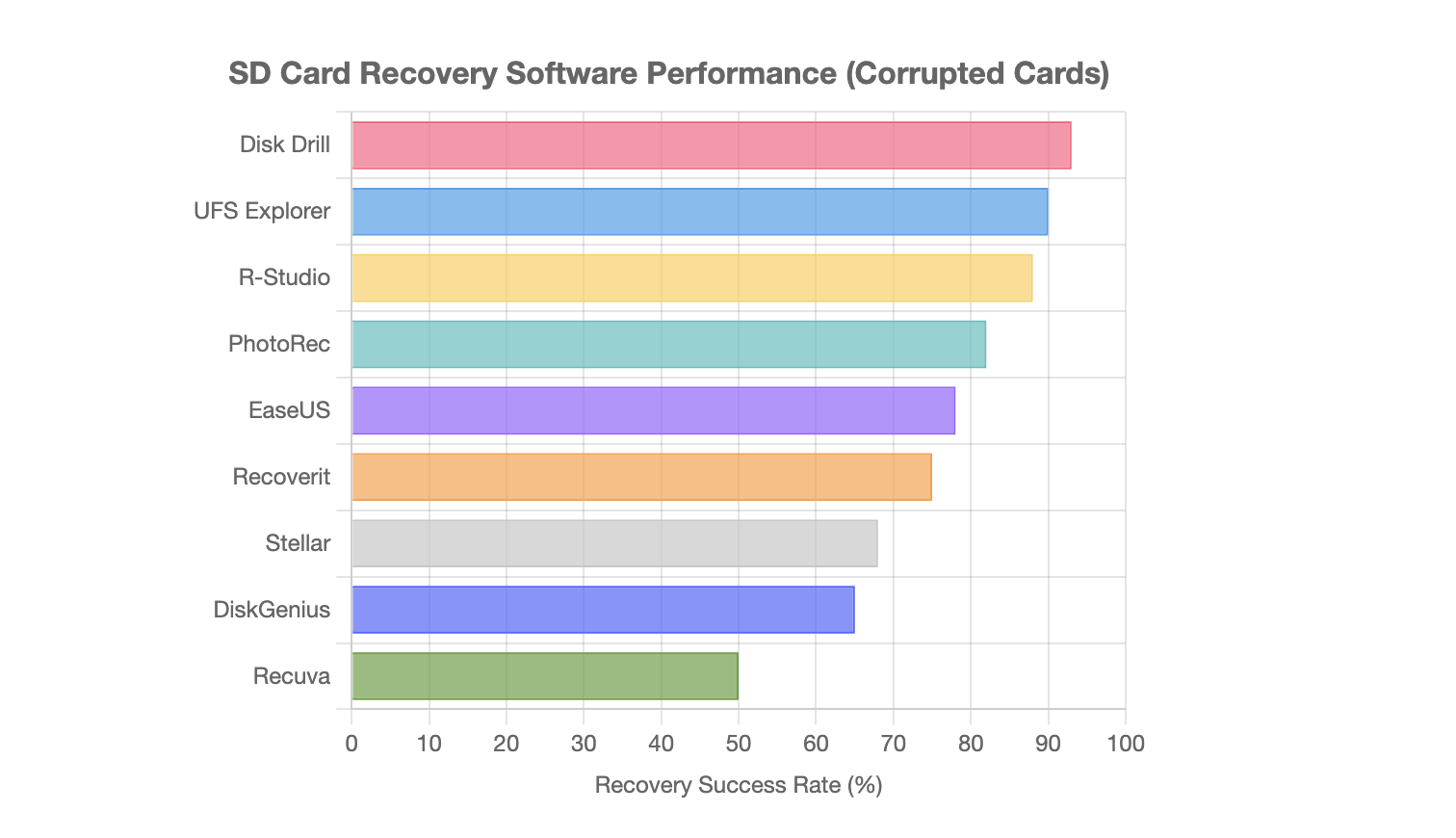
General Steps for Using Recovery Software:
- Download and install reputable recovery software on your computer (not on the corrupted SD card).
- Connect the corrupted SD card to your computer using a card reader.
- Launch the software, select the SD card as the drive to scan.
- Perform a deep scan (this may take time).
- Preview recoverable files. Most software allows you to see thumbnails of photos or snippets of videos.
- Select the files you want to recover and save them to a different, healthy storage device (e.g., your computer's hard drive, an external HDD). Never save recovered files back to the corrupted SD card.
Manual Recovery Techniques (Limited Scope)
Some operating system tools can occasionally fix minor logical errors, but they are generally not for recovering deleted or deeply corrupted files. These should be attempted with caution, preferably after trying to recover data with specialized software.
- CHKDSK (Windows): The Check Disk utility can scan for and attempt to repair file system errors. You can run it by opening Command Prompt as an administrator and typing `chkdsk X: /f` (replace X with the SD card's drive letter). SalvationDATA mentions this as a potential method. However, this command can sometimes alter data in a way that makes subsequent software recovery harder.
- Assign a New Drive Letter: If the card is recognized in Disk Management but doesn't have a drive letter, assigning one might make it accessible. This is a fix for a specific detection issue, not data corruption itself (Disk Drill).
These manual techniques are more for trying to make an unreadable card accessible rather than recovering specific lost files. Always prioritize non-destructive recovery software first.
When to Seek Professional Data Recovery Services
If your SD card is physically damaged (e.g., cracked, bent, water-damaged) or if software recovery attempts fail to retrieve critical files, professional data recovery services are the next option. These services have specialized cleanroom environments and tools to handle physically damaged media and perform complex recoveries (SalvationDATA). This can be expensive, so it's usually reserved for irreplaceable data.
Prevention is Better Than Cure: Best Practices for SD Card Care
While data recovery is sometimes possible, preventing corruption in the first place is always preferable. Adopting good habits can significantly extend the life of your SD cards and protect your data.
Proper Handling and Storage
- Store Safely: When not in use, keep SD cards in protective cases to shield them from physical damage, dust, and moisture (TechChef Madhuri on Medium). Zach Nicholz recommends drop-proof cases.
- Avoid Extremes: Protect cards from extreme temperatures, humidity, direct sunlight, magnets, and static electricity (TechChef Madhuri on Medium).
- Handle with Care: Be gentle when inserting and removing cards. Ensure the card reader supports your specific SD card type (SD, SDHC, SDXC) to avoid compatibility issues (VMI.TV).
Safe Usage Habits
- Safely Eject: Always use the "Eject" or "Safely Remove Hardware" option on your computer before physically removing the SD card. Never remove a card while data is being written or read (TechChef Madhuri on Medium, SLR Lounge). Allow devices like cameras a few seconds to finish writing after taking a shot before turning them off or removing the card.
- Format in Device: Format new SD cards in the camera or device you intend to use them with. This prepares the card's file structure optimally for that specific device (Digital Photography School). Reformat in-device periodically, especially if switching between different camera models.
- Avoid Filling to Capacity: Don't fill your memory card completely. Leaving some free space can help prevent errors. Switch cards when they are getting close to full (Jasmine Norris Photography).
- Dedicated Cards: If possible, use dedicated cards for different devices rather than frequently swapping one card between multiple types of cameras or computers, as each device may format or interact with the card slightly differently (SanDisk Support).
- Quality Matters: Invest in high-quality SD cards from reputable brands like SanDisk, Samsung, or Lexar. These are generally more reliable and durable (TechChef Madhuri on Medium).
- Avoid In-Camera Deletion (If Possible): Some photographers suggest that deleting individual images in-camera can sometimes lead to file indexing issues. It's often safer to delete images during the culling process on a computer after backup (Jasmine Norris Photography).
Regular Maintenance
- Regular Backups: This is the most crucial preventative measure. Regularly transfer your photos and videos from the SD card to a computer, external hard drive, or cloud storage. SanDisk advises copying content to an external drive in the field.
- Format Periodically: After backing up all data, periodically reformat your SD card in the camera it's used with. This "resets" the card and can help prevent accumulating errors (Megan Helm Photography).
- Use Write-Protect Switch: When a card is full and ready for backup, or if you want to prevent accidental deletion/overwriting, use the physical write-protect tab on full-sized SD cards (VMI.TV).
Conclusion
Losing precious photos and videos due to SD card corruption can be distressing. However, by understanding the causes, recognizing the signs, and knowing the recovery options, you stand a good chance of retrieving your files. Data recovery software like Disk Drill, EaseUS Data Recovery Wizard, and Stellar Photo Recovery offer powerful tools for this purpose. More importantly, adopting best practices for SD card handling, usage, and maintenance can significantly reduce the risk of corruption, ensuring your digital memories remain safe and accessible for years to come. Always remember that regular backups are your ultimate safeguard against data loss.
Related Recovery Paths
- Memory Card Recovery Guide for broader camera and memory-card workflows beyond SD cards alone.
- Wedding Photo Recovery: What to Do First when the corrupted card contains an irreplaceable client or family event.
- Emergency Photo Recovery for the first-response checklist after accidental deletion or card corruption.
- USB Drive File Corruption: Causes, Symptoms & Repair Methods if the storage problem is on a flash drive rather than an SD card.
Recover Photos from Your Storage Device?
Magic Leopard™ can repair corrupted photos recovered from damaged storage devices. Upload your image files for advanced restoration.